
Best Desktop Translation Apps for Mac, Windows, and Chrome in 2026
I have caught myself switching translation tools more often than switching windows. A browser has one caption setting, the operating system has another, and the meeting app adds its own language menu. They all seem to translate, but they do not handle the same kind of audio.
So this is not a ranked list. It is a way to match the tool to your computer and the work in front of you. When choosing desktop translation, start with where the sound comes from and where you want the translated text to go.
01 For browser audio, Chrome Live Translate is the quickest place to start
If you spend most of your time in Chrome watching videos, listening to podcasts, or joining web meetings, try Chrome’s Live Caption and Live Translate. Chrome can create captions for browser audio and translate them into a language you choose. It is close to the audio source and easy to try without installing another app, which makes it useful for following along with a video.
I like that you do not have to identify which website a video belongs to first. A course page, livestream, or podcast player can all start with the browser’s caption settings, as long as the audio is playing through Chrome. When a new term comes up, the text is already beside the video. That small convenience matters.
Its scope is also clear. Chrome mainly handles audio playing in the browser. A meeting in a desktop app, or a class you want to save and review later, may need another workflow. Browser translation is handy for consuming content; ongoing meetings and records call for a closer look at history, export, and device support.
That is why a desktop translation tool is not always a standalone app. Some features live in the browser, others in the operating system. Find the source of the sound first, and you will spend less time in the wrong settings menu.
02 System captions on Windows and Mac help you read computer audio
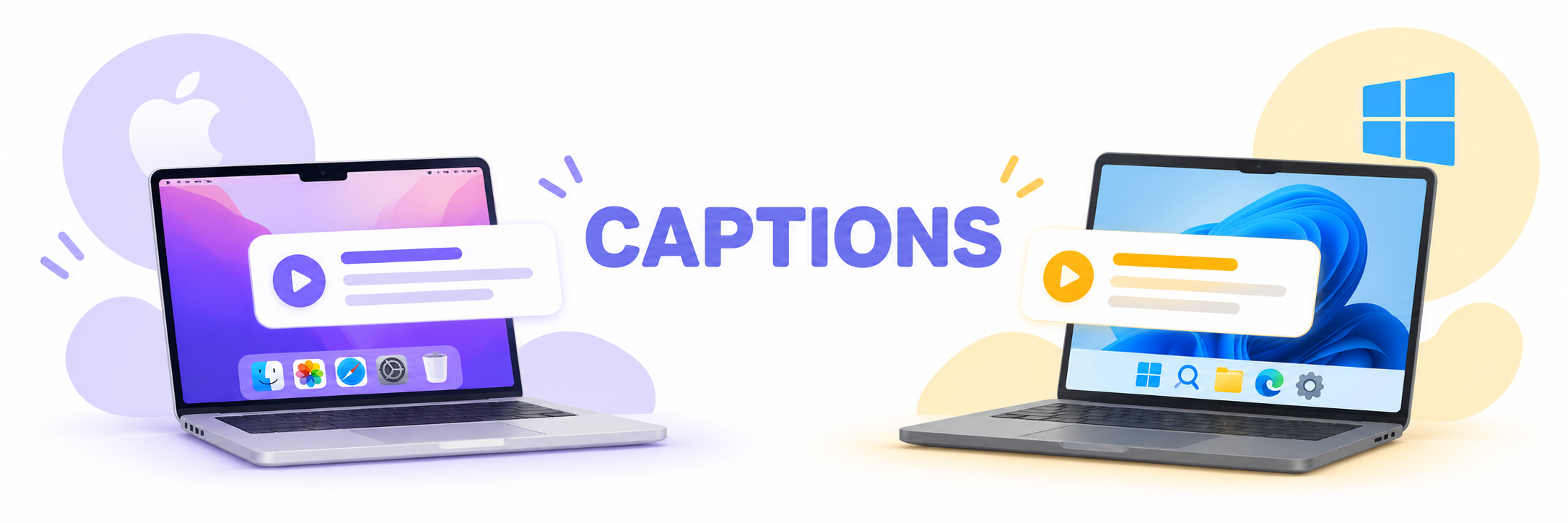
Windows 11 Live Captions can caption audio across the computer, with a caption window that stays over other apps. Some Copilot+ PCs also offer translated captions. If you mainly need to follow videos or other system audio, the benefit is that you do not have to look for a separate caption control in every app.
On a Mac, it helps to distinguish system captions from live translation. Live Captions can show spoken audio in supported settings. Apple Intelligence Live Translation works with apps such as Messages, FaceTime, and Phone for their specific communication scenarios. It is not the same as general-purpose translation for any desktop audio, so check your macOS version, device, and app before relying on a feature.
I would treat system captions as a convenient first layer. Turn on a video or web audio and see if they cover your everyday needs. If you move between several apps or need to keep bilingual text, try a real workflow from startup to finding the saved content. A feature list does not tell you whether the steps feel natural.
System captions answer, “Can I see the audio playing now?” They may not also answer, “Can I save the translation?” or “Can I export captions to keep editing?” What you need to do after the words appear often determines which desktop tool fits.
03 For meetings and records, choose a tool that supports the whole workflow

If most of your work happens in Teams, Zoom, or Google Meet, DeepL Voice for desktop is worth considering. It provides live translated audio for online meetings and lets you select the meeting platform. It may suit people who want to hear translated speech while a meeting is underway. Check the current official requirements for supported platforms and systems before installing it.
If you need more than listening during a meeting, Huhu can be part of a desktop workflow for classes, meetings, and cross-language communication. It turns speech into original and translated text in real-time bilingual captions, saves interpretation records, and supports bilingual SRT export. The web version also accepts WAV and MP3 audio for transcription, connecting live listening with later review.
I use a simple way to compare tools. Pick something you actually listen to, then try the system captions, browser captions, and a meeting translation tool. See whether captions are easy to read, whether you can return to the original text, and whether the saved record is useful. A few minutes with your own workflow is more revealing than comparing feature counts.
To try bilingual real-time captions for classes, meetings, and multilingual communication, visit the Huhu website. Multi-device support, saved interpretation records, and bilingual SRT export help connect listening with what you do afterward.
There is no single best desktop translation app for everyone. Use Chrome for browser audio, start with Windows or Mac captions for system audio, and compare meeting tools by the full workflow you need. Once you find the audio source, the tools stop looking like a pile of buttons and start fitting into your workday.
That’s it for today. If you enjoyed this, give it a like.
Thanks for reading. See you next time.